The window
Syncretic is one window. The canvas runs edge to edge; everything else floats over it on glass panels.
The sidebar
At the top, the Syncretic mark and name: click it to go to the gallery. The window’s traffic lights sit above it.
Projects lists every project; the open one is marked with a gold dot. New project is under the list.
Below a hairline, what you see depends on where you are:
- In Shape, a legend of node types (colour bead, name, and how many properties each has) and relationship types.
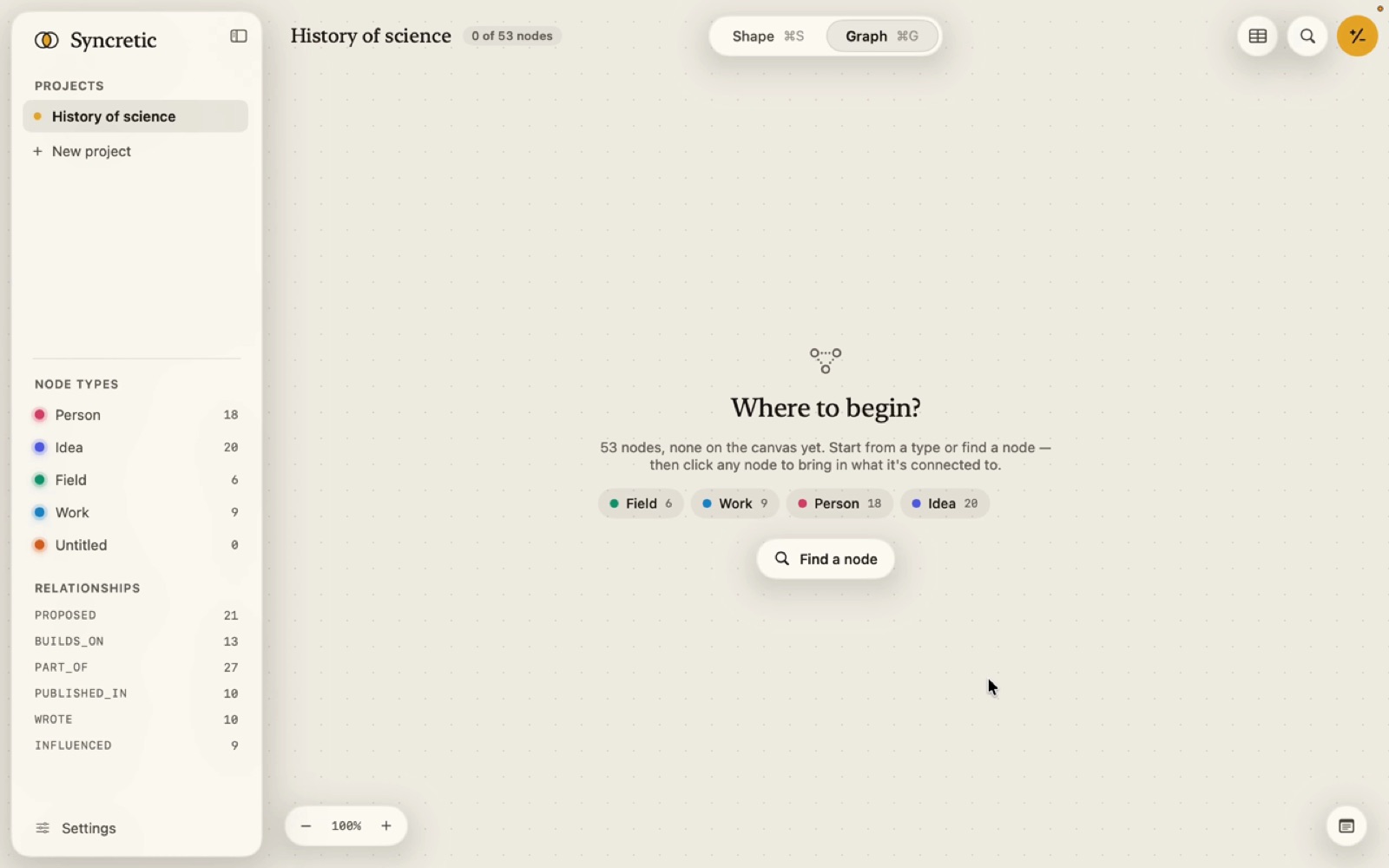
- In Graph, the same legend with counts: how many nodes of each type and how many connections of each relationship are in the graph. Click a type to put its nodes on the canvas, a lot at a time (25 by default). Right-click a type to set its Visual Priority (First, Normal, Ad Hoc), which decides when its nodes come in when you expand a neighbour; the priority shows as a small icon beside the name.
- While the search bar is open, History: every question asked in this project. Click one to run it again (a saved query runs without asking the model), right-click to remove it.
At the foot: Reading only · Enter license until the Mac is licensed, and Settings.
Hide the sidebar with the icon at its top right or ⌃⌘S; a round button takes its place beside the traffic lights to bring it back. The gallery always shows the sidebar.
The top bar
Left: the project name and a status capsule. In Shape it says Saved or, in red, Not saved yet (hover it to read what the shape needs before its edits can go into the database). In Graph it says how many nodes there are, or “48 of 1,200 nodes” when not all are on the canvas, and ”· 12 filtered out” when an Arrange filter hides some. While text is being embedded for vector search, a capsule says Embedding 12 of 340.
Middle: the mode switch, Shape ⌘S and Graph ⌘G. Graph is locked until the shape has at least one type.
Right, in Shape: Build with Claude (or ChatGPT). In Graph: Arrange (the scatter icon, ⌘L), Clear the canvas (eraser, ⇧⌘K, only while something is on it), Show as a table (⌘T), Search (⌘F), and the gold ± button that opens the edit panel (⌘N). Every button has an instant tooltip with its shortcut drawn as a keycap.
The canvas
A dot grid that pans and zooms. Scroll to pan, pinch or ⌘-scroll to zoom, hold Space or ⌘ to drag-pan. In Shape it holds the type cards; in Graph, the nodes you’ve explored.
The inspector
The right-hand panel. In Shape it’s always there (hide it with its ×; a click on the canvas brings it back) and shows the selected type, or an overview with tips. In Graph it appears when something is selected: a node, a relationship, or several nodes. The arrows button at its top right expands it over the whole window for reading or editing at length; Esc puts it back. While the edit panel is open it takes the inspector’s place.
The footer
Left: the zoom control with fit (⌘0). Middle: a one-line hint for the mode you’re in (“Click a node to bring in its connections · double-click to add a node · drag from a halo to connect”), or, after opening up a type or a node, a pager (“Showing 25 of 212 Verse · Show 25 more · Show all”). Right: the Notes button (⌘J).
When the graph is empty, the canvas says An empty sky: double-click anywhere to place your first node, or press ⌘N to add one by form. When the graph has nodes but the canvas is empty, it asks Where to begin? with a chip per type (fewest first, with counts) and a Find a node button.
Toasts and dialogs
Short notices (an error, “Bringing in the graph…”, “Undo stopped here…”) appear as a glass toast at the bottom for six seconds. Anything that deletes data asks first in a confirmation sheet. The License window and Settings are their own windows.
Light and dark
Settings › Appearance: Match system, Porcelain (light) or Midnight (dark). The theme is called Lumen: parchment or warm ink, a gold accent, serif for titles and names, mono for relationship names and Cypher.