The inspector
The panel on the right appears when something on the canvas is selected. The arrows button at its top right opens it over the whole window (Esc puts it back); it still reads as a column.
A node
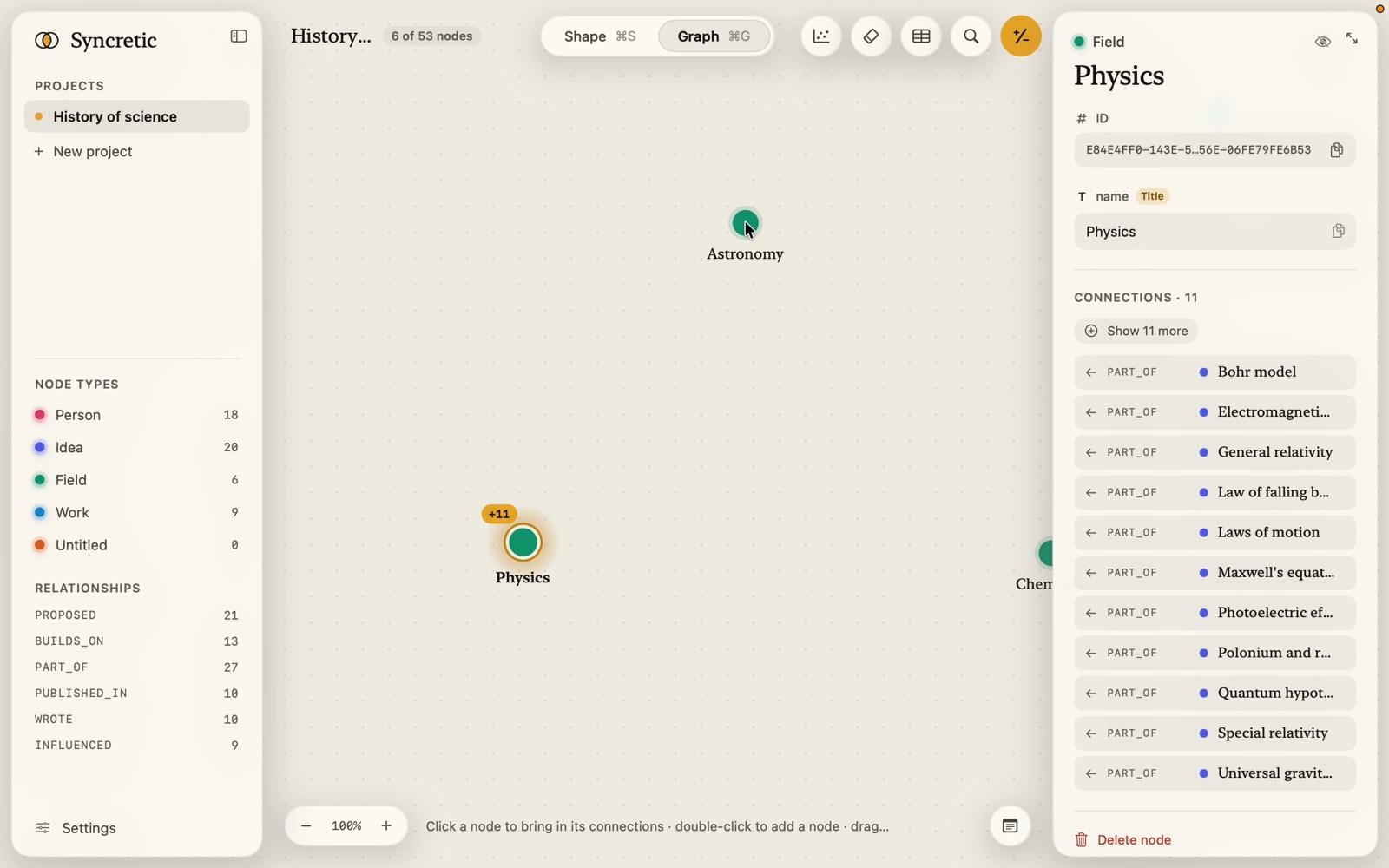
From the top:
- Type with its colour bead. On the right: a pin (shown when pinned; click to let the layout move it) and an eye-slash (hide from the canvas, with what came out of it; the node stays in the graph; the same as H).
- The title, big, cut to three lines; the full text is in its property below.
- ID: the node’s UUID. Click to copy. Right-click for Copy ID or Copy as Note Tag (
@<id>, see Notes › Tags). An id pasted into a question points at exactly this node; pasted into the command palette, it finds it. - Every property, in the shape’s order, each editable in place:
- Text: a field that grows; long text opens into a multi-line editor where Return makes a new line. When a search matched this text, the matched passages (vector) or words (Raw Text) are marked, and the panel scrolls to the first.
- Number: a mono field; what you type is read as a number or refused.
- Link: a field, and under it a preview card (thumbnail, title, site) that opens the link; right-click for Open Link, Copy Link, Refresh Preview.
- Boolean: a three-state switch: Not set, Yes, No.
- Enum: chips for its options; a value that isn’t an option any more shows as a stray tag. Clearing a property that has a default puts the default back.
- Connections · N, then CanvasControls: Show 25 more (the next lot of neighbours by priority, same as a second click), All on the canvas, or 12 Ad Hoc off the canvas · right-click to expand; and, when neighbours of more than one type are hidden, a chip per type to bring in only that type.
- The connection list, 100 at a time (more as you scroll): direction arrow, the relationship’s name (hover for its title), the other node’s bead and title. Click a row to select that node and fly to it. Right-click for Show Relationship, Copy Relationship ID, Copy Node ID, Delete Relationship.
- Delete node.
Every edit is written at once and is one undo step (“Edit Node”).
A relationship
The relationship’s name in mono (and its title, if the type has a title property and it’s filled in), its ID, from ↓ to as two node tiles (click one to fly to it), its properties, and Delete relationship.
Several nodes
Selected by box or ⇧-clicks:
- N nodes, listed by type with counts.
- Shared properties: the properties every selected type has, by name and kind (titles left out, since one name for all is never wanted). Where all the nodes hold the same value it’s shown; where they differ the editor is blank and marked Mixed, with a tooltip listing what they hold (“Paper · 12, Book · 3”). Setting a value sets it on all of them as one undo step (“Edit 15 Nodes”). An enum offers only options all the types share.
- Show more of each (+) and Hide (H).
- A reminder: drag any of them to move them together; ⇧-click adds or removes one; ⇧-drag adds a box.
- Delete N nodes…, which asks first.